Ticket Example : NXI-637-80689
Firstly, if the user account is deleted, make sure the deleted email account is created again first by the customer in the Smartermail.
Then, login to the Veeam Client. You can check at:

Referring to this ticket, the user account is located at WIN13.SMALL-DNS.COM server whereby you can see the Veeam Client is remarked with the specific IP address.
Using the IP address, Remote desktop to the Veeam client server and search for the domain. Once you have locate the email account that has been created (for example:shene), right click and copy the file to a new directory.
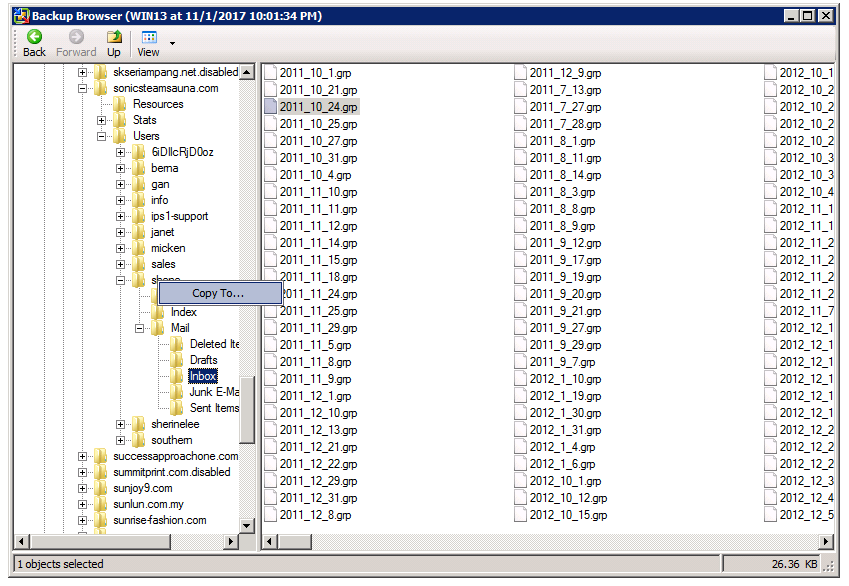
Make sure you create a new folder in a directory that still have enough space disk.
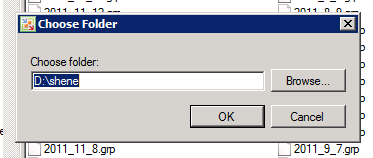
Then, the copied file will be copy into the new created folder in the directory.
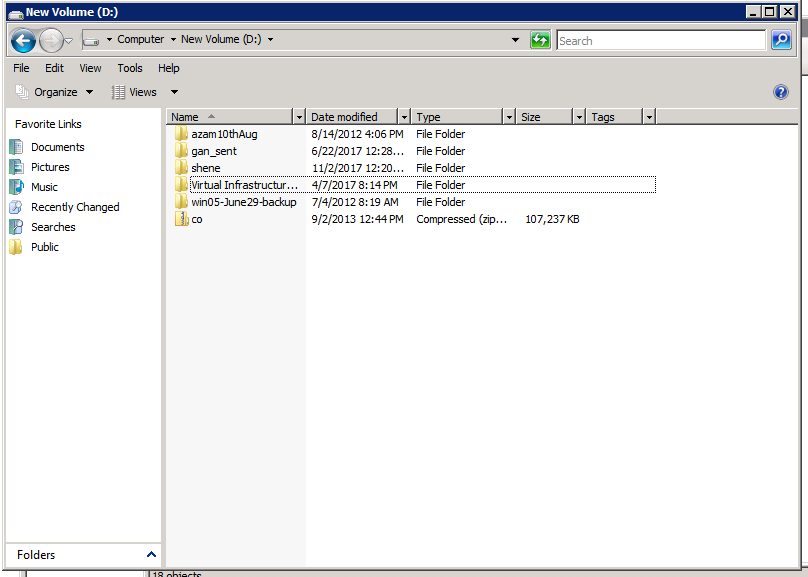
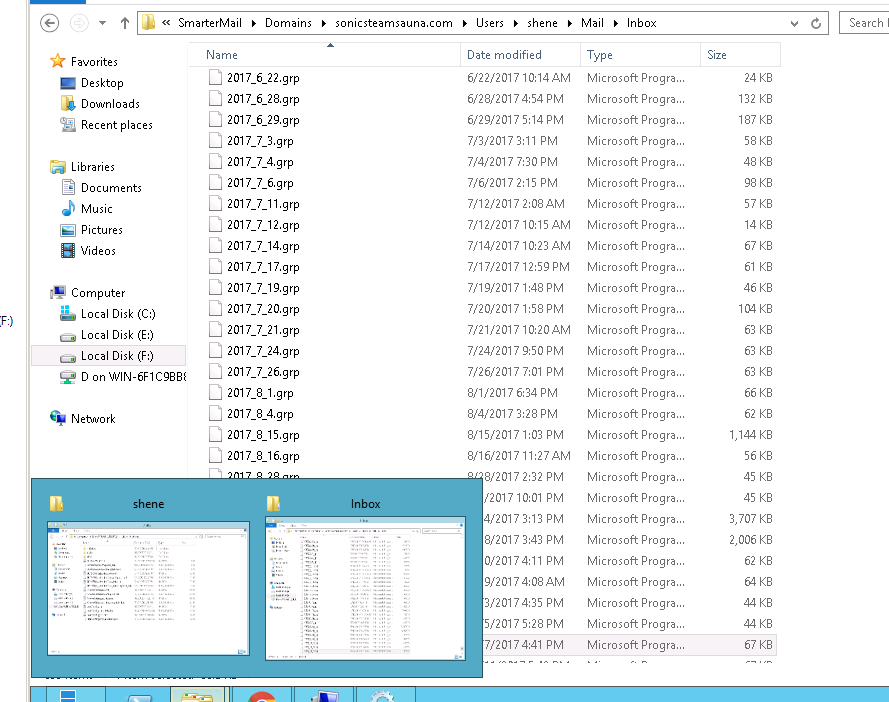
Once copied, stay inside the Veeam client and remote desktop to the selected server (for example here:WIN13.SMALL-DNS.COM). Next, inside the WIN13.SMALL-DNS.COM, open two tabs of file directory whereby the first file directory, search for the smartermail path and another tab is the directory file that you have copied previously.
Inside the veeam client server, go to the user account folder created before and copy all the transferred files inside. (For example: folder shene)
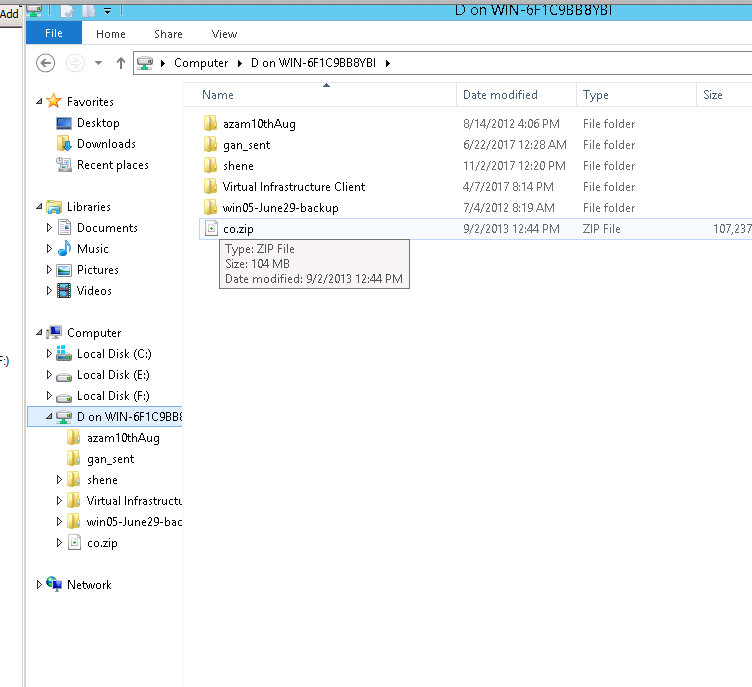
Then, go to the another open tab (smartermail) and find the the user account inside the selected domain. Once you have found the user account (for example:shene), click it and go to mail. Inside mail, choose inbox and paste all the copied file from the veeam client into the inbox.
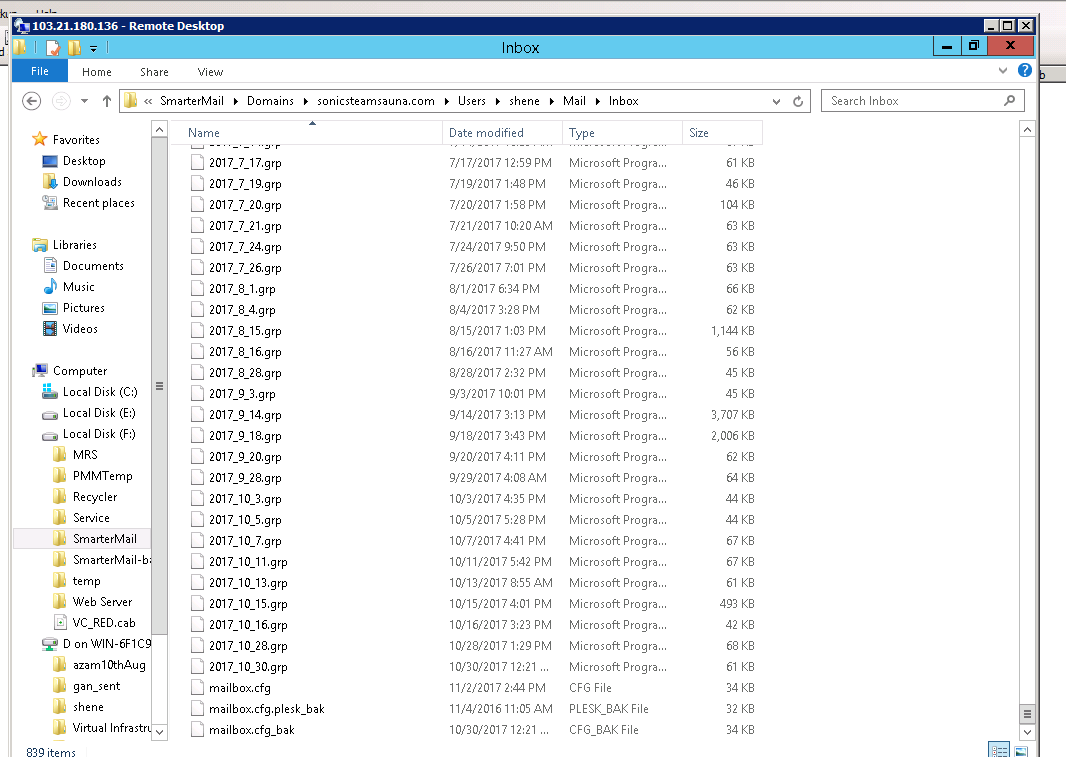
Once copied, scroll onto the bottom until you find a file named mailbox.cfg and rename it to mailbox.cfg_bak
For example:
SmarterMail > Domains > sonicsteamsauna.com > Users > shene > Mail > Inbox
Lastly, search for “services” and find Smartermail Service. Right click and restart the Smartermail services. DONE!
