Ticket Example : BGO-179-55087
R1Soft Server Backup Manager is a flexible, server-friendly solution that eliminates the pains of running traditional backups. Its Continuous Data Protection™ technology enables users to run backups as frequently as every 15 minutes, with no negative impact on server performance.
First, login into the remote desktop and search for the firewall setting. Then, click on “inbound rules” and add new rules.
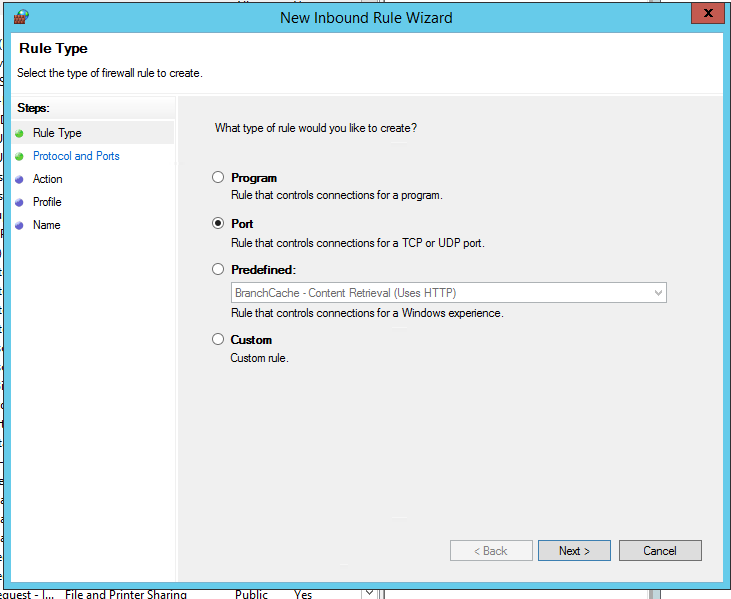
Set port as 1167 and allow all connections.
Next, search for “CDP” and click on “authorized server backup manager”. Choose ‘Manual’ and paste the public key.
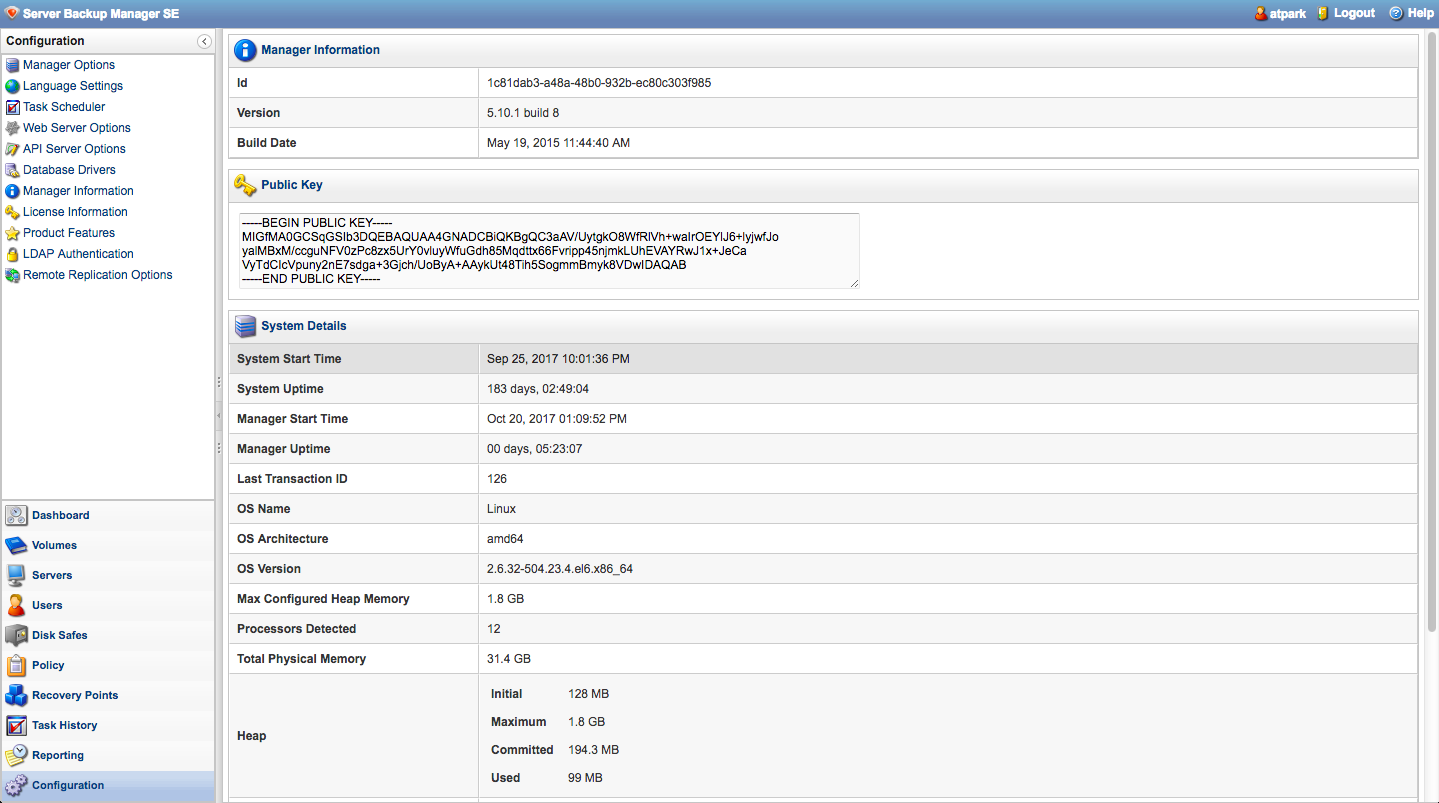
The public key can be obtained from the “configuration” in R1soft server
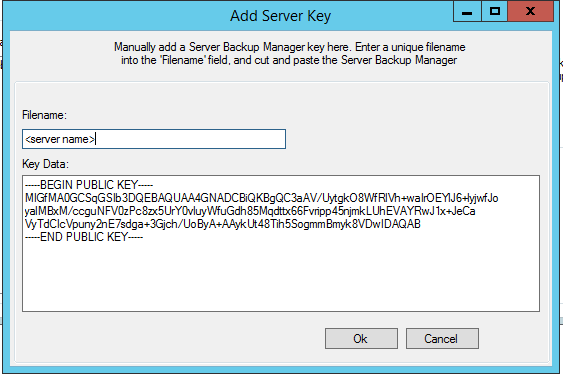
Note that you have to copy the public key in the Server Backup Manager SE of the server itself. Click “configuration” on the left side and copy.
After you have finished configuring firewall and CDP in remote desktop, go to terminal and SSH to the server.
First, go the the server backup directory. Type,
cd /backup
Then make new directory of where your backup going to be store. For example,
mkdir daily_backup_103_21_182_70
Thats all for the terminal part. Moving on to the the last step which is in Server Backup Manager SE. Firstly, login to the server.
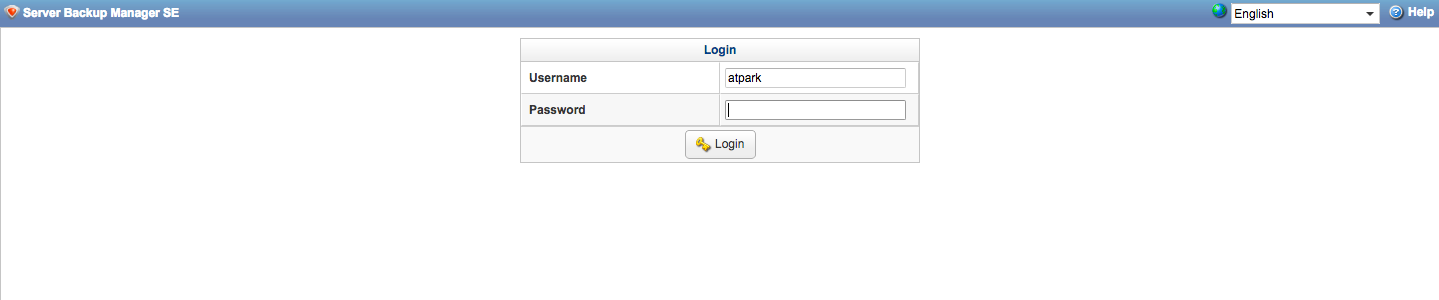
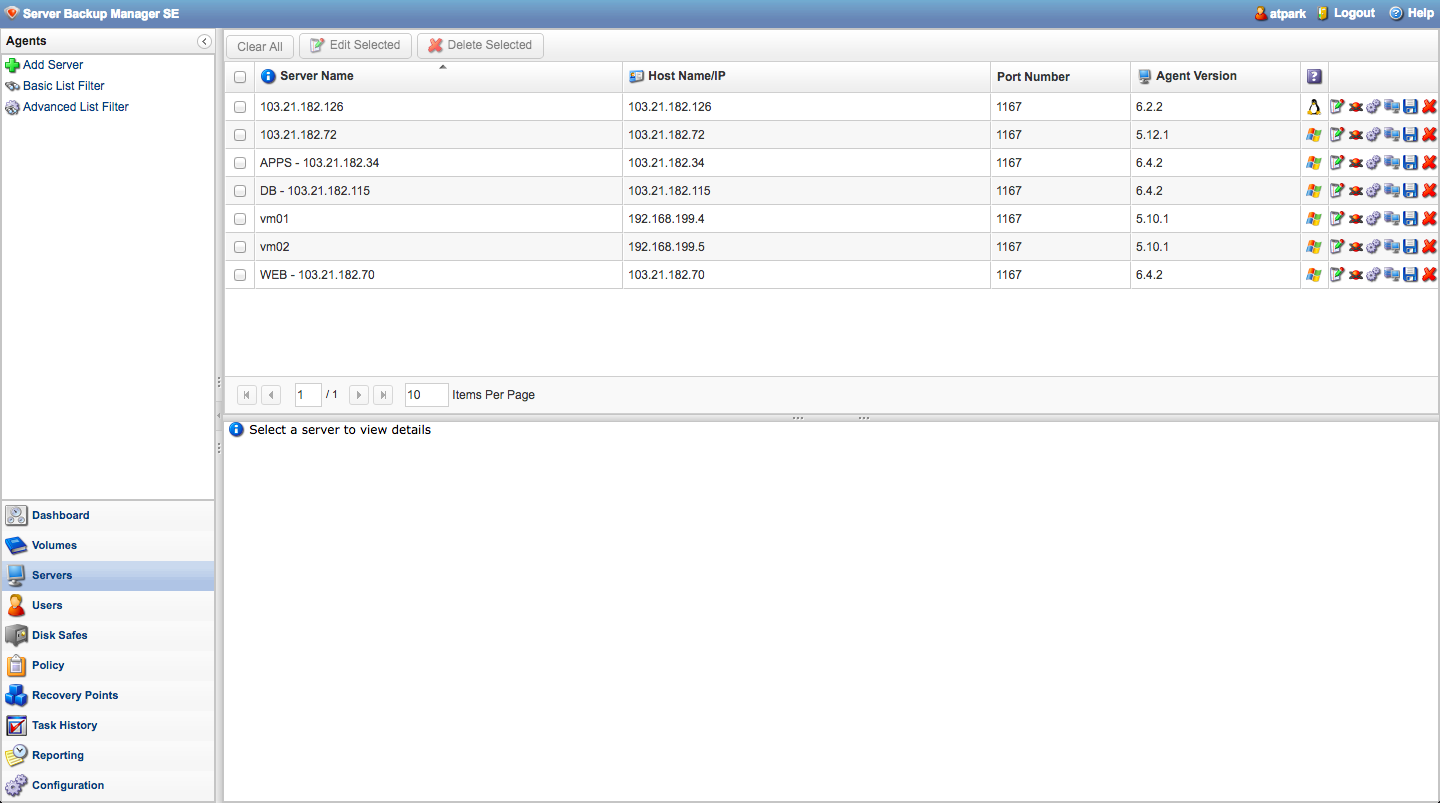
Then, on left side pane , click on the server and add server.
Next, click on the “volume” at the sidebar and create new.
Make sure you fill in the correct volume path and name. You can type the command line below in terminal to check the path.
pwd
For example
name: web_103_21_182_70
volume path: /backup/daily_backup_103_21_182_70
Next, click “Disk Safe” and create new disk safe.
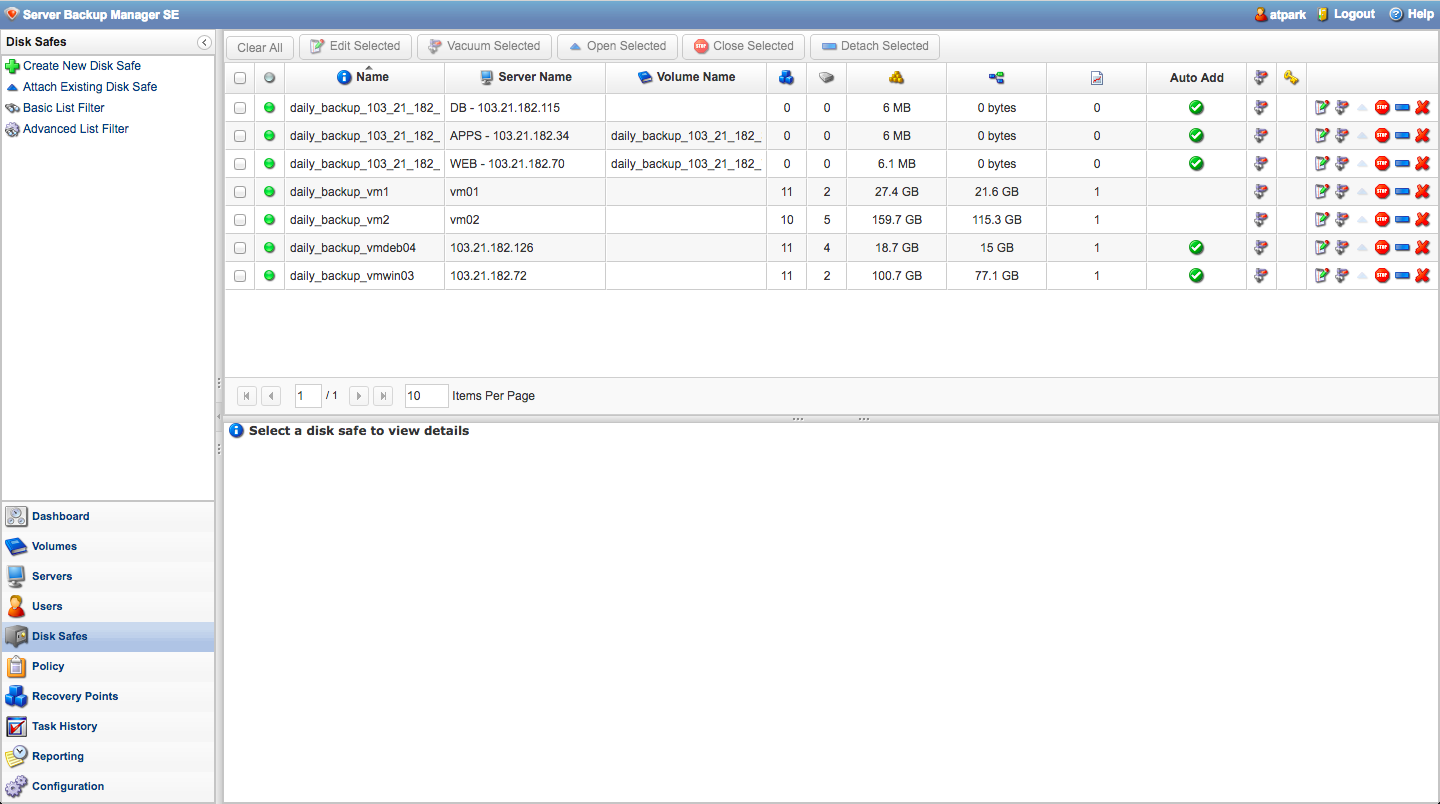
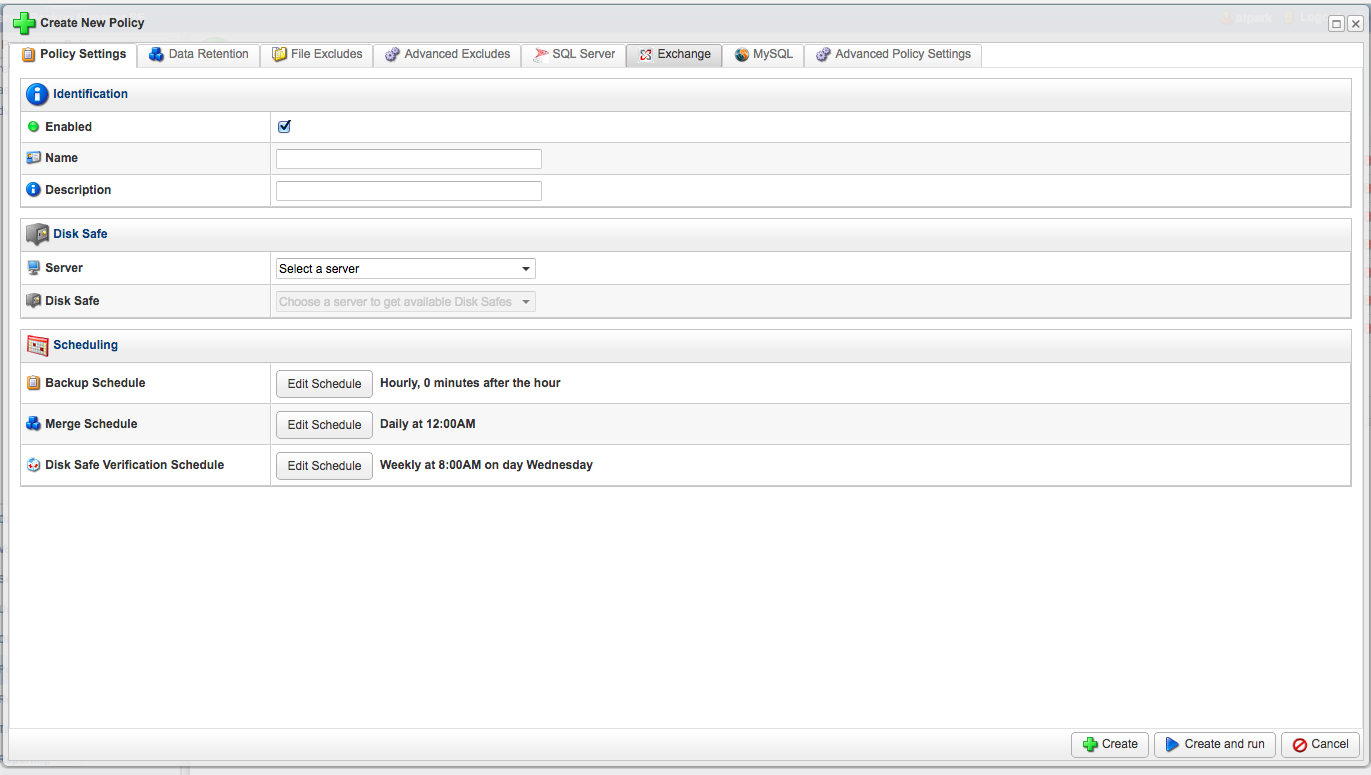
Lastly, click policy and create new policy. You can choose the time and date of when you want the backup to run on the server.