Same goes to the previous articles on How To: Install SSL Certificate (cPanel)
In the Directadmin, go to the domain that need to be install/renew with SSL.
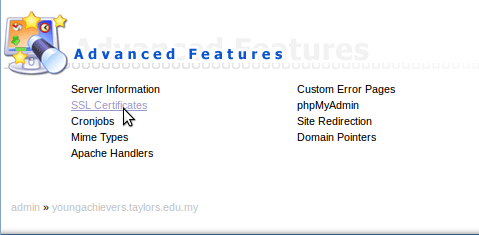
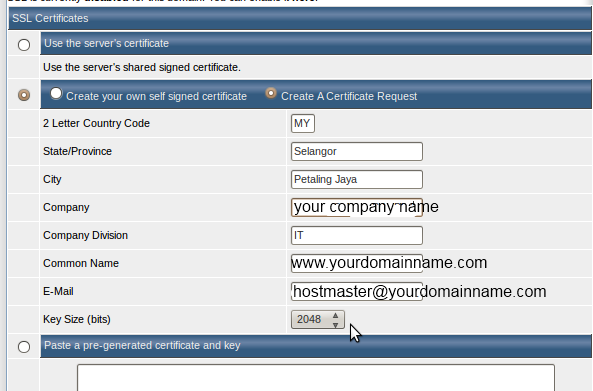
Then, to generate the CSR in DirectAdmin, fill in all the details and click generate. Choose “create a certificate request”
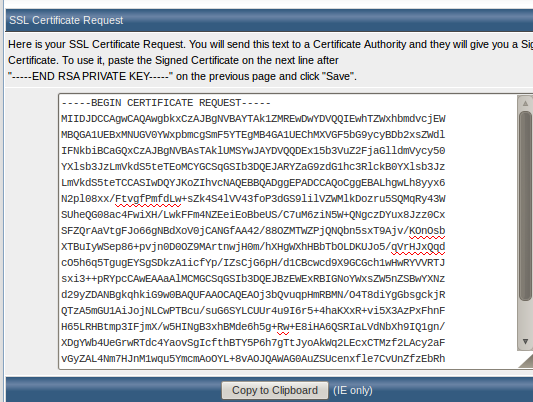
Paste the generated CSR in GlobalSign website in order to proceed with the installation

Then proceed to click next. Then, choose the type of verification. Example here, choose the DNS verification whereby at the end of the installation, globalsign will provide a TXT record to be added in the name server of the domain to verify the installation.
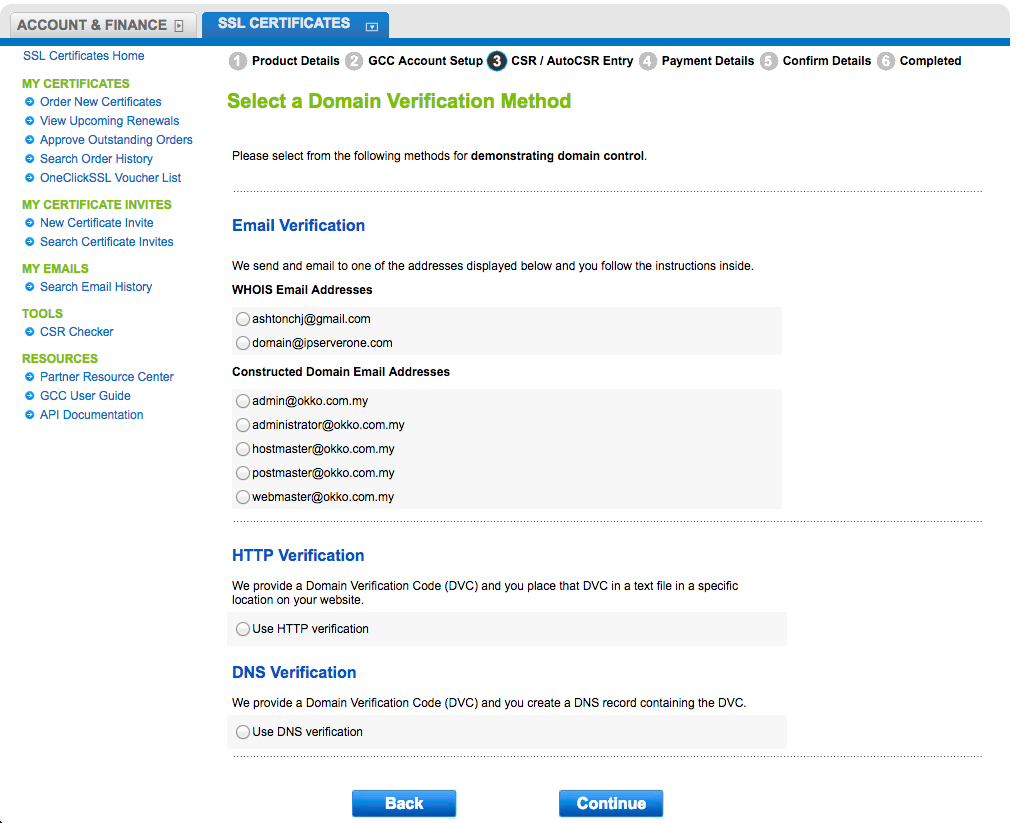
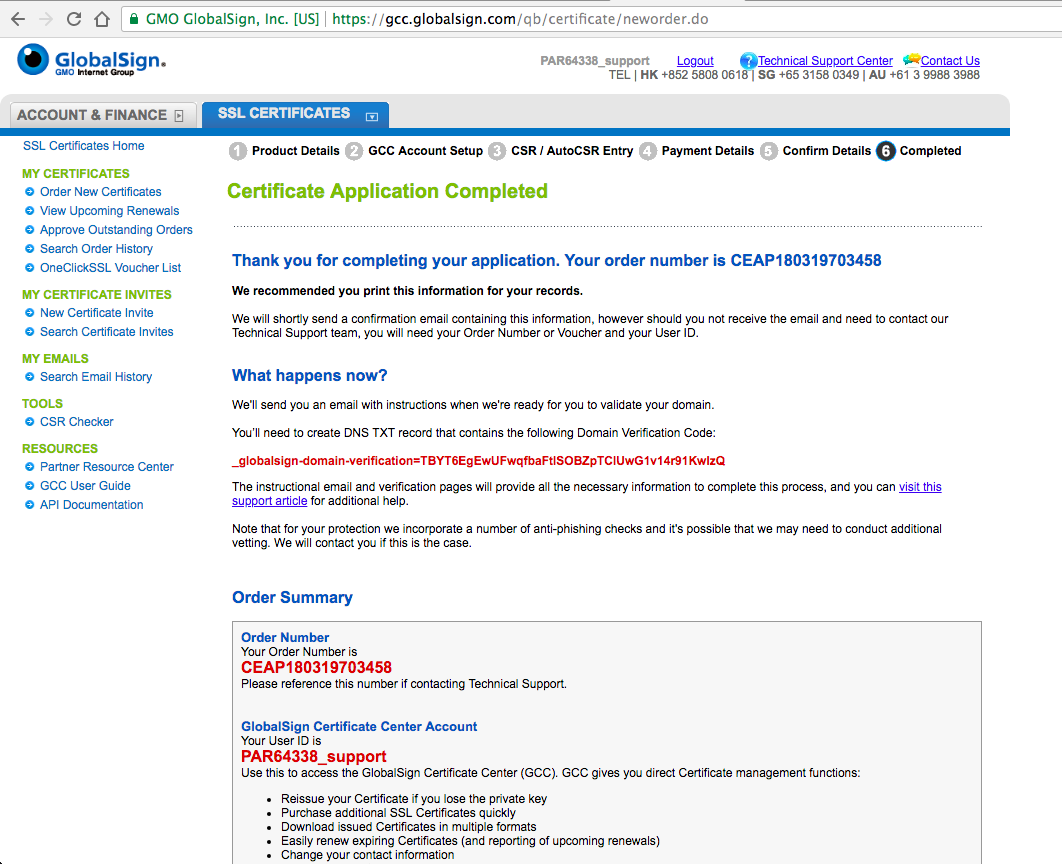
For example, the domain is under the PDNS nameserver, therefore, add the TXT record given there.
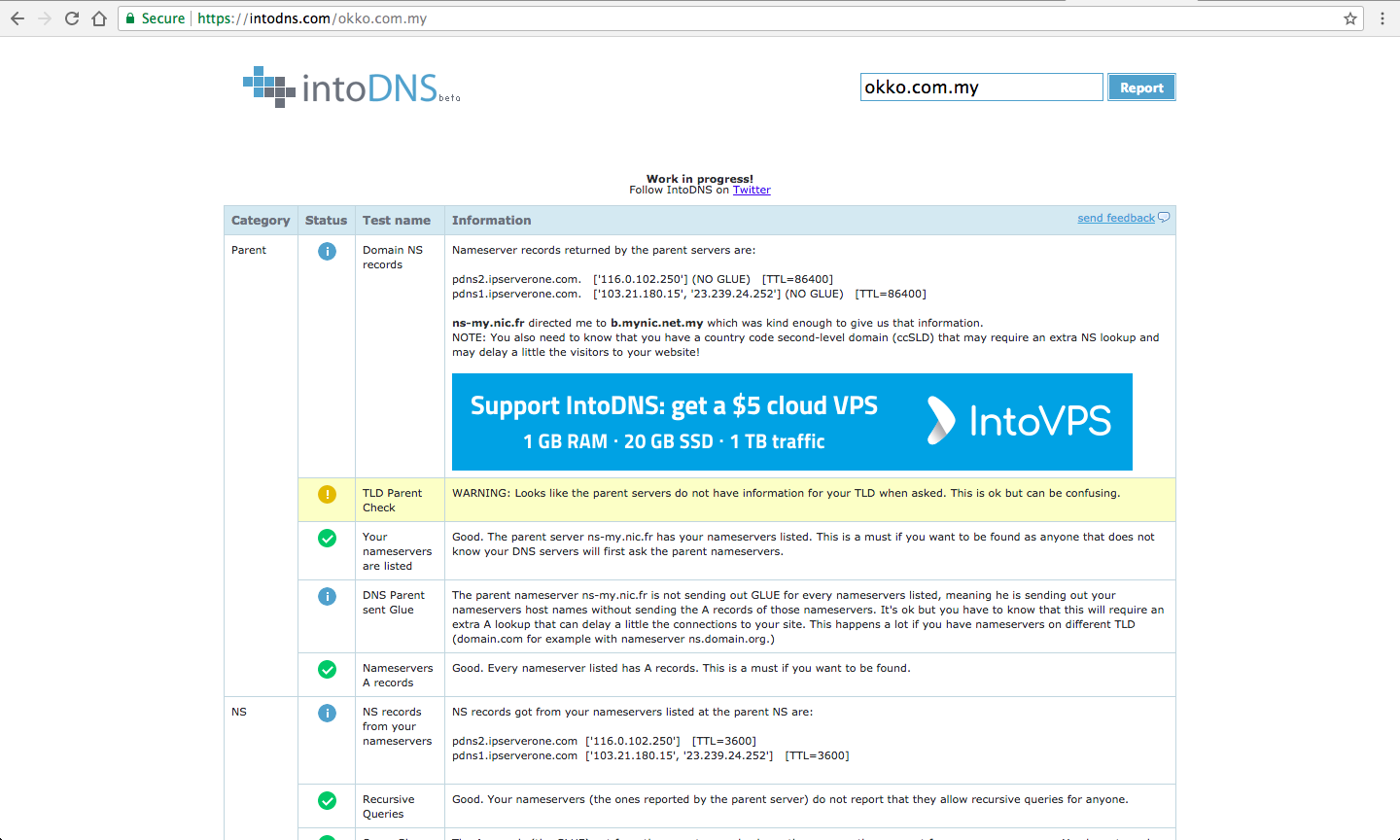
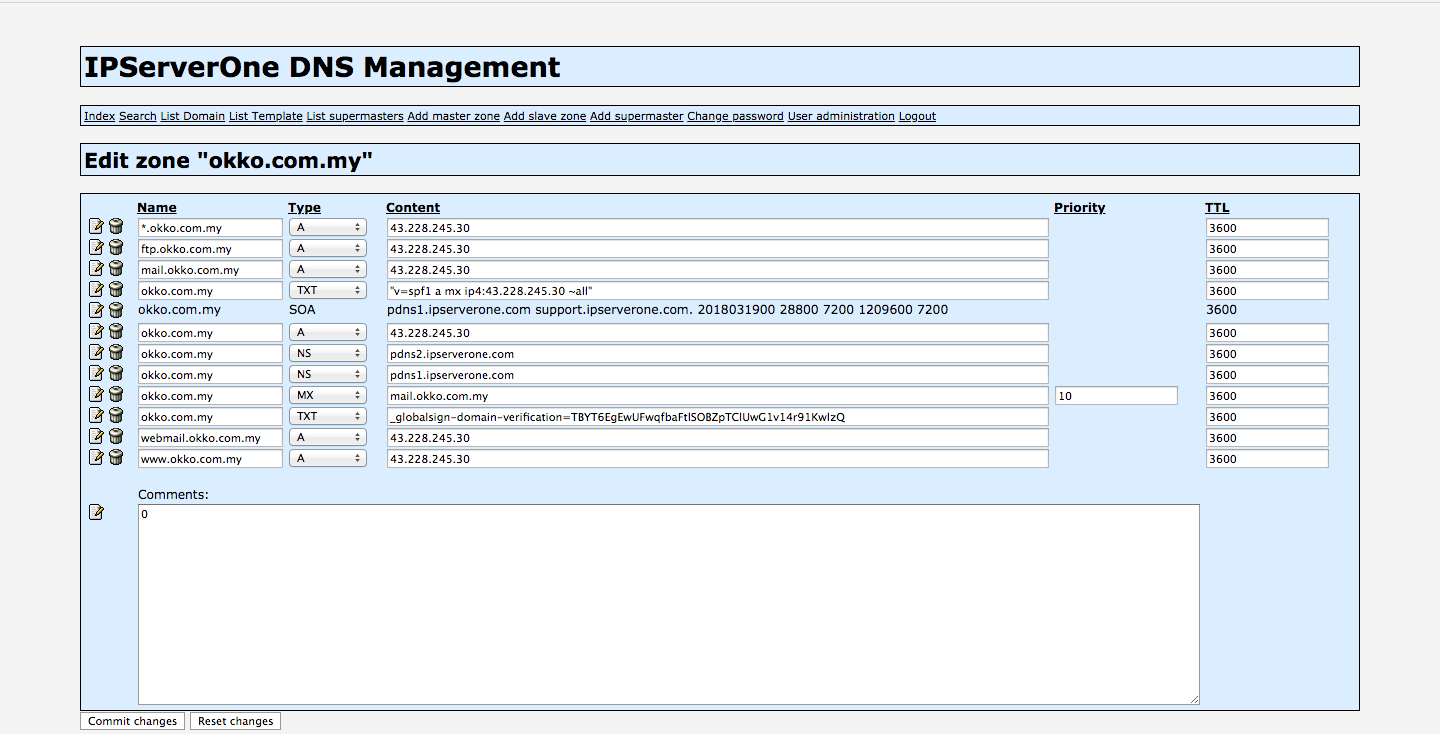
If the nameserver is either in SME hosting or Linux Hosting, then add the TXT record in their domain management respectively
DirectAdmin – DNS Management
cPanel – Advanced Zone Editor
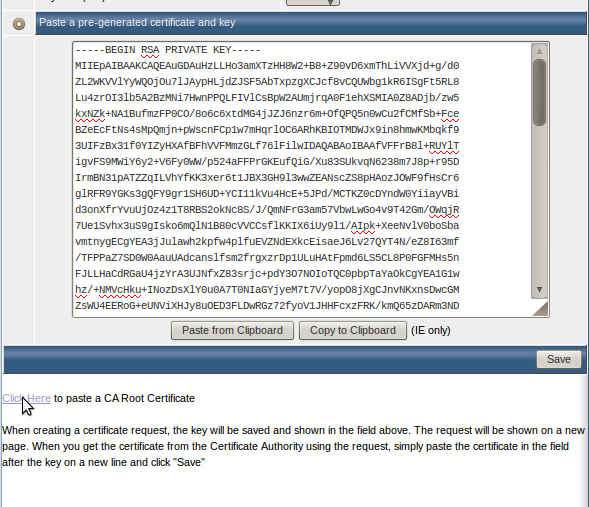
Once done, choose “Paste a pre-generated Certificate and key” , paste the SSL certificate code below the “–End RSA PRIVATE KEY–” and click save
If you choose the HTTP verification, global sign will provide a META Tag to be added in the gsdv.txt whereby you need to SSH into the server and go to below path
/home/domains/abc123.com/public_html/.well-known/pki-validation/gsdv.txt
Note that you need to add the directory below
mkdir .well-known/pki-validation
vi gsdv.txt
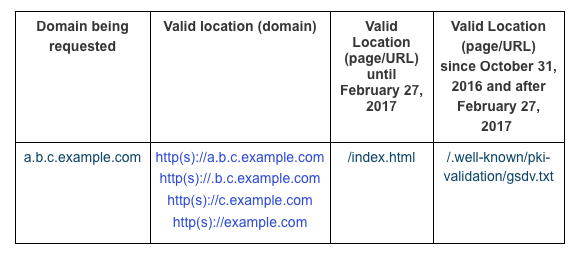
Inside the the gsdv.txt, add the META tag given by globalsign and verified the domain to complete the SSL installation/renewal.