LAMP, which stands for (L)inux, (M)ySQL, (A)pache, (P)hp, is needed to be installed and configured if your planning to run a site using CMS (content management systems) such as WordPress or Joomla.
LAMP are the four most commonly used software to host and run virtually all websites on the internet.
For Linux, the choice of Operating Sytems is up to your preference (Redhat, Ubuntu, Centos, etc).
Apache is an essential web server application.
MySQL is the second most widely used relational database management system (RDBMS).
PHP is a scripting language designed for web development and general-purpose programming.
To start, SSH into the server.
Installing Apache
1. Install
[cc]
yum install httpd
[/cc]
2. Start the Apache service
[cc]
service httpd start
[/cc]
3. Stop iptables and set Apache to start itself after server reboots. You’ll not be able to access the Apache Test Page if iptables is not turned off.
[cc]
service iptables stop
chkconfig iptables off
chkconfig httpd on
[/cc]
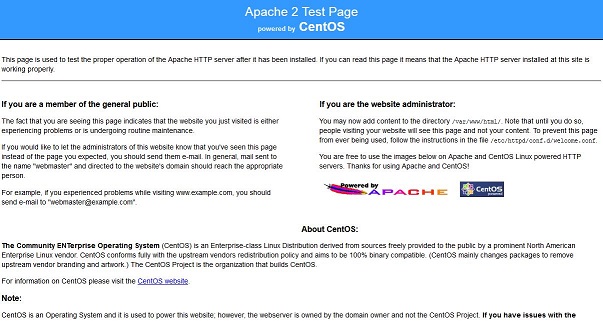
4. Type http://your-ip-address-here in your browser’s address bar to check if you have performed step 2 correctly.
If successful, you should see the Apache Test Page.
Installing MySQL
1. Install
[cc]
yum install mysql-server
[/cc]
2. Start MySQL service after installation is completed. MySQL database will initialize and start. You do not have any login credentials to MySQL at this stage.
[cc]
service mysqld start
[/cc]
3. There are two ways to create a user account to access MySQL.
[cc]
/usr/bin/mysqladmin -u root password ‘DESIRED PASSWORD’
[/cc]
OR
[cc]
/usr/bin/mysql_secure_installation
[/cc]
The first method will grant you a direct access to MySQL. The second method, which is the preferred method, will guide user through a series of steps and options to remove test database and anonymous user created by default.
You can now access MySQL database by typing the command into your server’s terminal.
[cc]
mysql -u root -p
[/cc]
Installing PHP
1. Install
[cc]
yum install php php-mysql
[/cc]
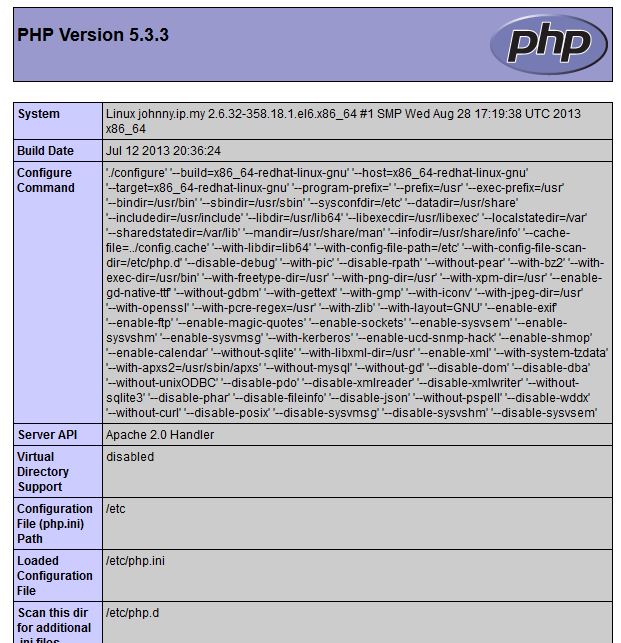
2. Create a new file by running the command below to check if PHP has been successfully installed and is now working on your server.
[cc]
vi /var/www/html/info.php
[/cc]
3. Type and save the command below into the newly created file.
<?php
phpinfo();
?>
4. Restart Apache service
[cc]
service httpd restart
[/cc]
5. By now, your server is able to run any PHP-scripted software. Type http://your-ip-address-here/info.php into your browser’s address bar and if successful, you should see something similar as below. Else repeat Step 1.
You have successfully installed LAMP on your server.
You can now start creating and running your website using WordPress or Joomla.