Control is a sort of feature/plugin in Directadmin which enables email account users (not admins) to easily set vacation messages and change their passwords.
To check if mail auto-responder is working:
1. SSH into the server as root
2. Go to /var/www/html/ to check if there is a folder named “Control”
3. If the folder is not there, most probably the Control feature has not been installed/configured
To install:
[cc]
cd /var/www/html
wget http://www.ipfusions.com/setup/control.tar.gz
tar -zxvf control.tar.gz
[/cc]
Next, edit the options file below:
[cc]
vi /var/www/html/squirrelmail/src/options.php
[/cc]
Search for “window.open”, and replace the line below:
/* Output the option groups for this page. */
if($optpage==SMOPT_PAGE_PERSONAL) {
echo "<tr><td> </td><td> <input type='button' value=' Change Password / Vacation Message ' onclick=\"alert('Please login with your FULL E-mail address, and E-mail password'); window.open('https://ns26.small-dns.com:2222/CMD_CHANGE_EMAIL_PASSWORD', '_blank');\" style='height:30px;'></td></tr>";
}
to
/* Output the option groups for this page. */
if($optpage==SMOPT_PAGE_PERSONAL) {
echo "<tr><td> </td><td> <input type='button' value=' Change Password / Vacation Message ' onclick=\"alert('Please login with your FULL E-mail address, and E-mail password'); window.open('https://ns26.small-dns.com/control', '_blank');\" style='height:30px;'></td></tr>";
}
Do not forget to change the URL to the correct server as well.
Now you can test setting up vacation messages.
1. Create a test email account (ips1@domain.com)
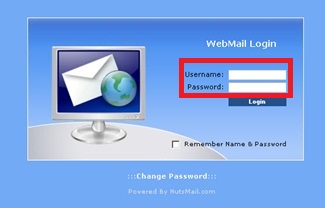
2. Login to webmail at webmail.domain.com or domain.com/webmail with the username and password
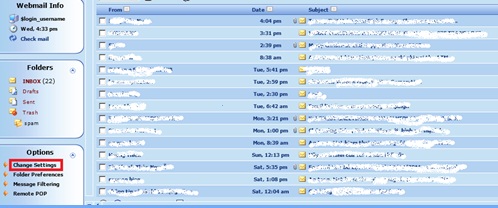
3. Click [Change Settings] under [Options] at the bottom left corner
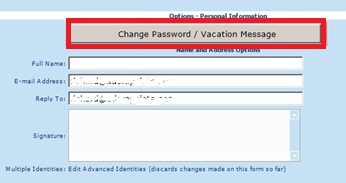
4. Click [Change Password / Vacation Message]
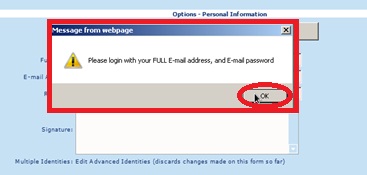
5. Click [OK] when pop up screen appears
6. Site Security screen will pop up to seek approval. Click [Proceed anyway]

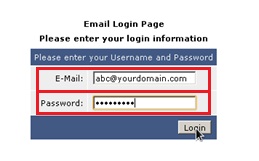
7. Proceed to login using your created Email and Password
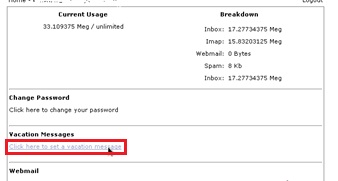
8. Click on [Click here to set a vacation message] under [Vacation Messages]
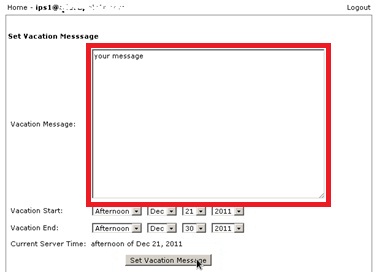
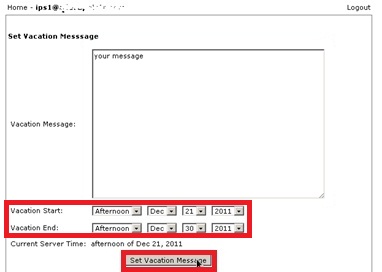
9. Type in your intended vacation message in the [textbox]. Set your desired date for the message to appear starting from when to when, then click on [Set vacation message]
Once that’s done, you can proceed to logout.