First, login into the Windows Server and open IIS, click start.
Then, generate the SSL certificate signing request CSR by selecting the Control Panel and click on the Administrative Tools.
From the centre menu double-click Server Certificates in the Security section.

Then, click on the “Create Certificate Request” on the right side of the menu.
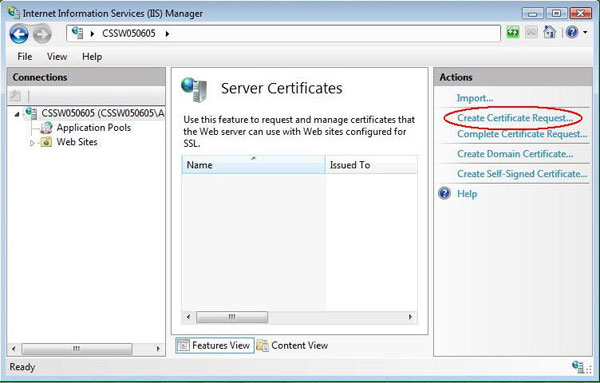
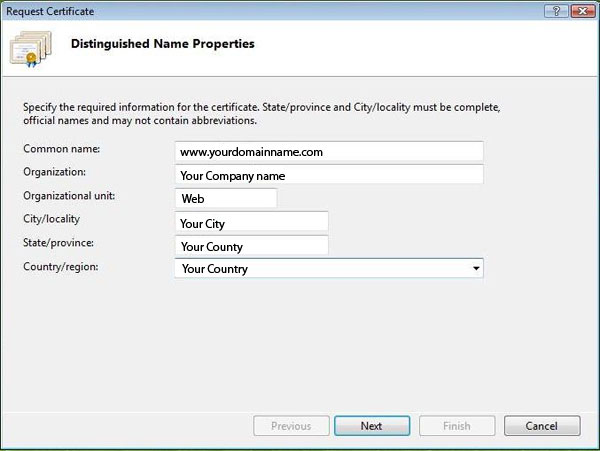
The Request Certificate Wizard will appear. In the Distinguished Name Properties window enter information as prompted. Click Next.
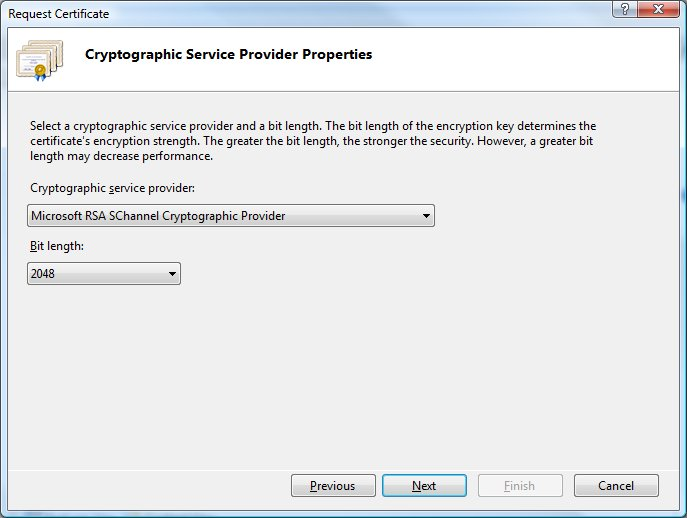
Next, In the Cryptographic Service Provider Properties window leave both settings at their defaults (Microsoft RSA SChannel Cryptographic Provider and 2048). Click Next.
Then, enter a file name and location to save your CSR. You will need this CSR to proceed with your SSL Certificate.
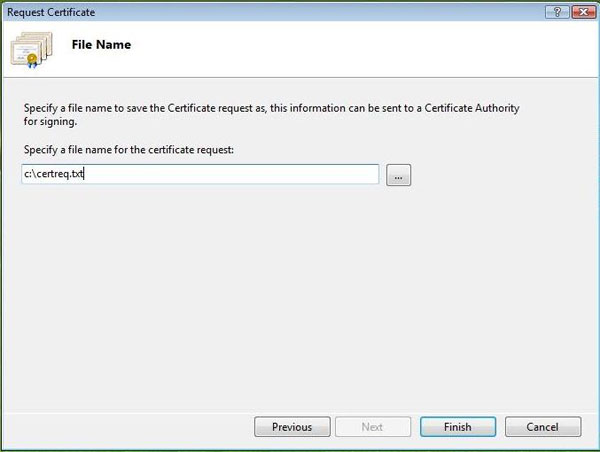
Now, your CSR has been generated and will be saved to the location you selected in the file you named. When you request a certificate in the future you will need the information inside the file.
Paste the generated CSR in GlobalSign.

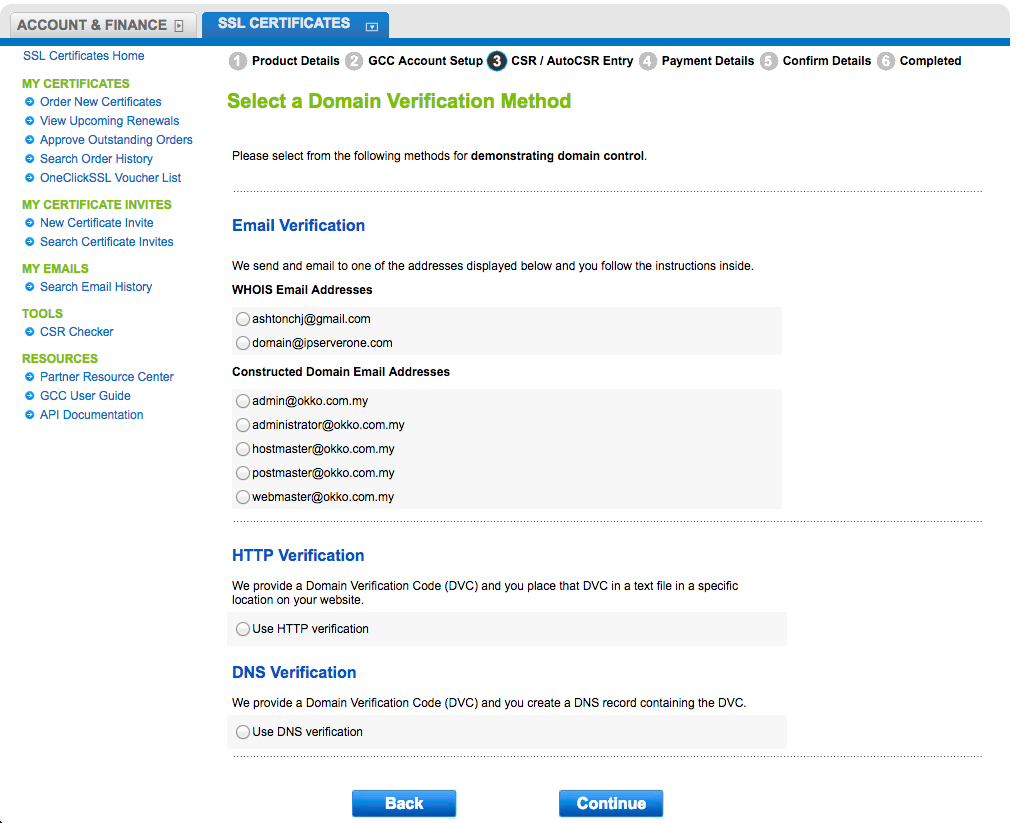
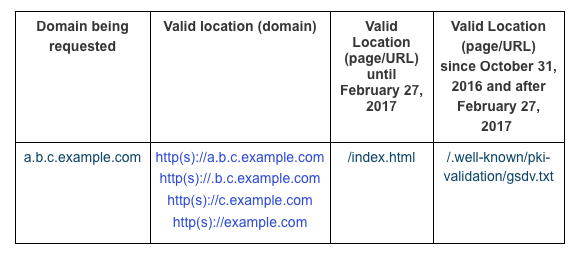
Then proceed to click next. Then, choose the type of verification. For Windows server, choose the HTTP verification whereby Globalsign will provide a META Tag to be added in the gsdv.txt whereby you need to create the folder stated in the Windows server according to the below path.
Create the folder according to the path below in the Windows server and inside the gsdv.txt, add the META tag given by globalsign and verified the domain to complete the SSL installation/renewal.
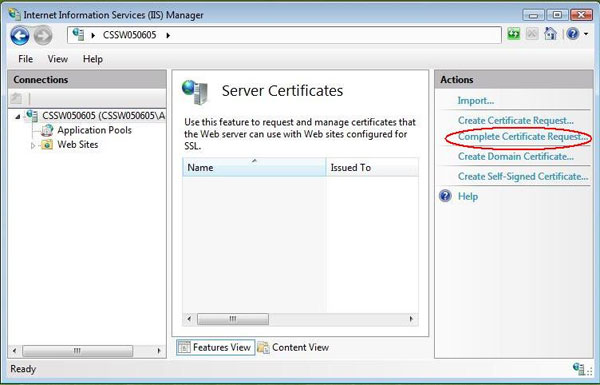
Then , select the Actions menu from the right. Click Complete Certificate Request
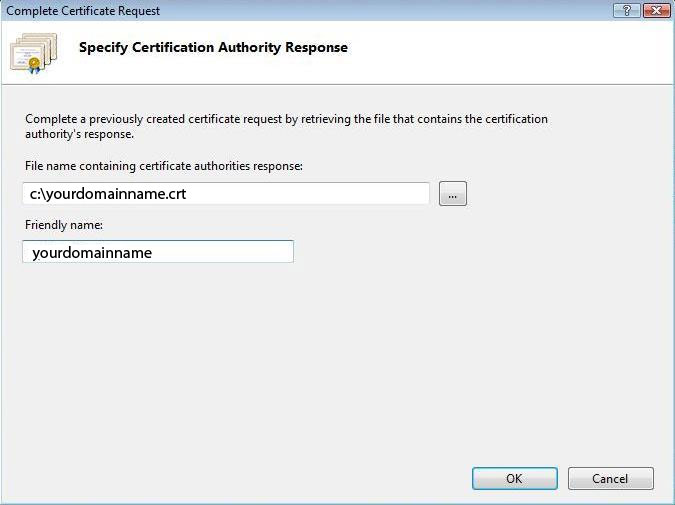
The Complete Certificate Request wizard will appear. Enter the location and name of the SSL certificate you saved to your server earlier and then enter a “Friendly Name”. Click OK.
From the Connections menu in the main IIS Manager window, select the name of the server to which the certificate was installed. Under Sites, select the site to be secured with SSL.
Lastly,from the Actions menu click Bindings.
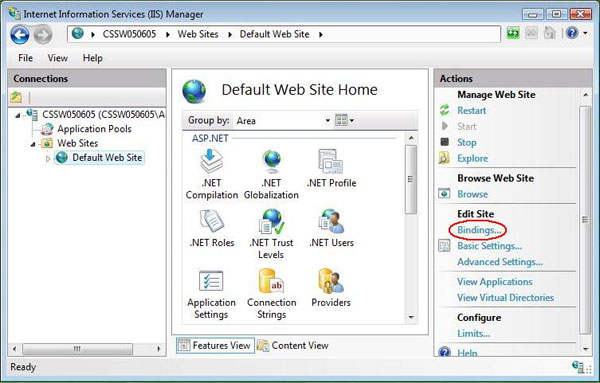
In the Site Bindings window click Add and in the Add Site Bindings windows, choose https under Type. The IP address should be the IP address of the site or All Unassigned. The SSL Certificate field should specify the certificate that was installed previously.
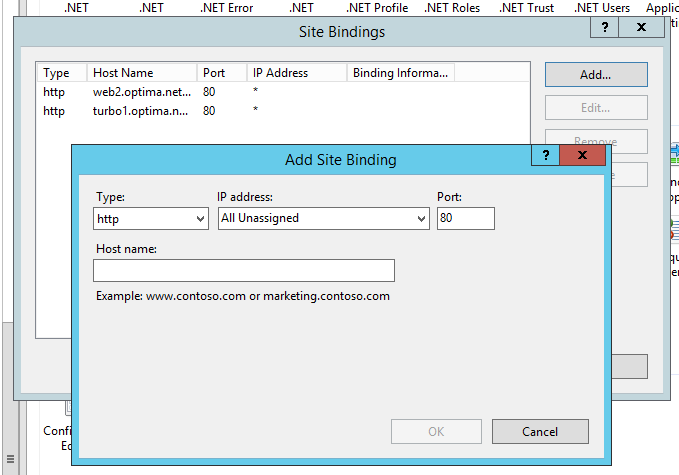
Click OK and restart IIS to complete the installation of your certificate