Before we begin, do note that root passwords for our shared hosting servers should NEVER be changed unless instructed to.
Root passwords for Dedicated and Cloud servers should also NEVER be changed unless requested by customer via written request.
If you know the current root password:
To change the root password while knowing the current root password, simply SSH into the server and input the following command:
[cc]
passwd
[/cc]
This will prompt you to enter your new password.
If you do not know the current password:
If you do not know the current password, you would need to boot the server into single user mode to change the root password.
You would need to access the server via IKVM or IPMI to perform this. SSH won’t work as the server will be down during this time.
Once the server is booting up, press any key when prompted, to bring up the Grub menu below.
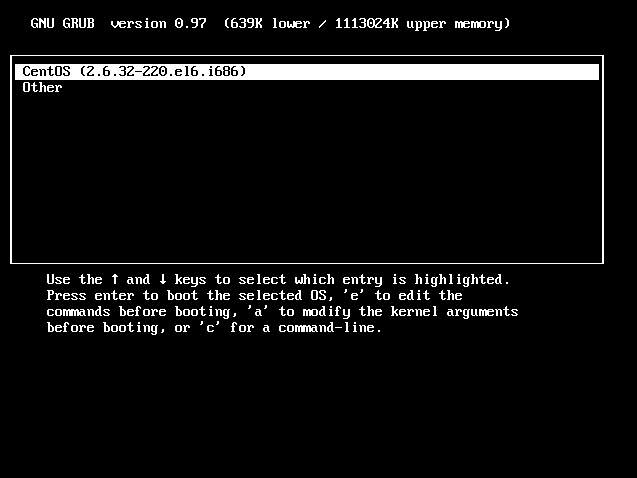
Select the right OS version and press ‘e’ to modify kernel arguments before booting.
Now, here’s the tricky part.
For Centos 6, follow the simple step below by adding “single” to the end of the line and press Enter.
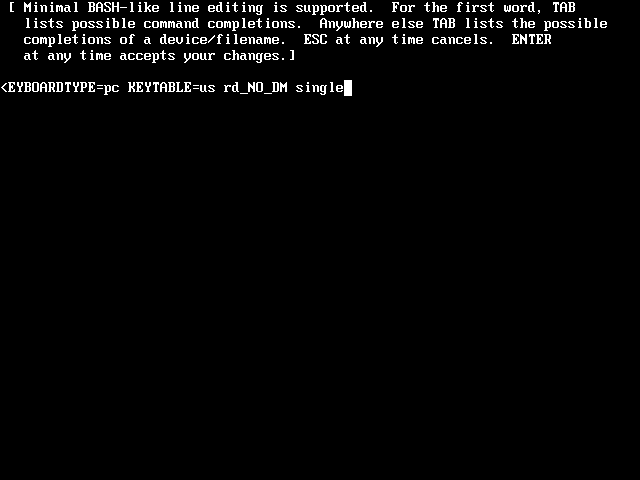
You will be logged into the server in single user mode.
Here, just type passwd and input your new password.
For Centos 7, you would need to input as below in the Grub menu.
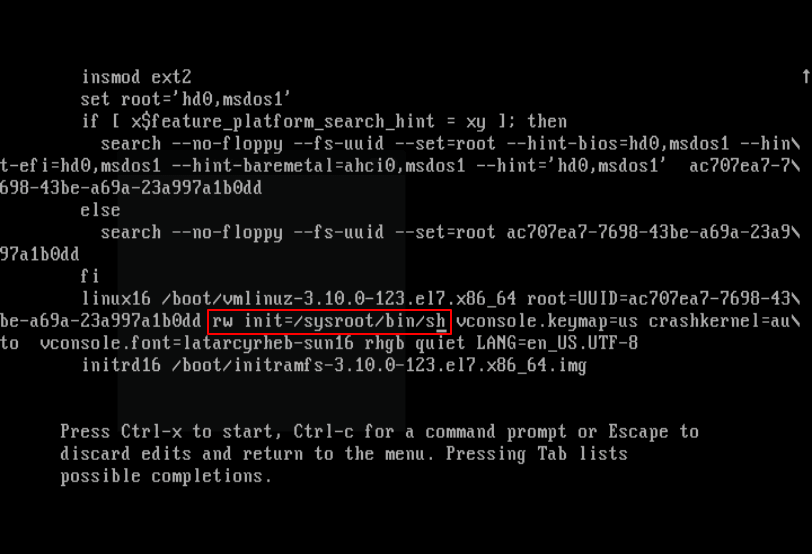
Then press Ctrl+X to start.
After this, you’ll be logged in, and you can type passwd to change your root password.
After changing the root password in Single User Mode, another reboot is required for the change to take effect.
You can then login using your new password.